How the site is run
What the Membership Office sees behind the scenes, and how routine jobs are done without a web developer.
These are real screens from the MembershipWorks admin behind this demonstration site; the members and events in them are fictional.
A tour of the admin, in ten screens
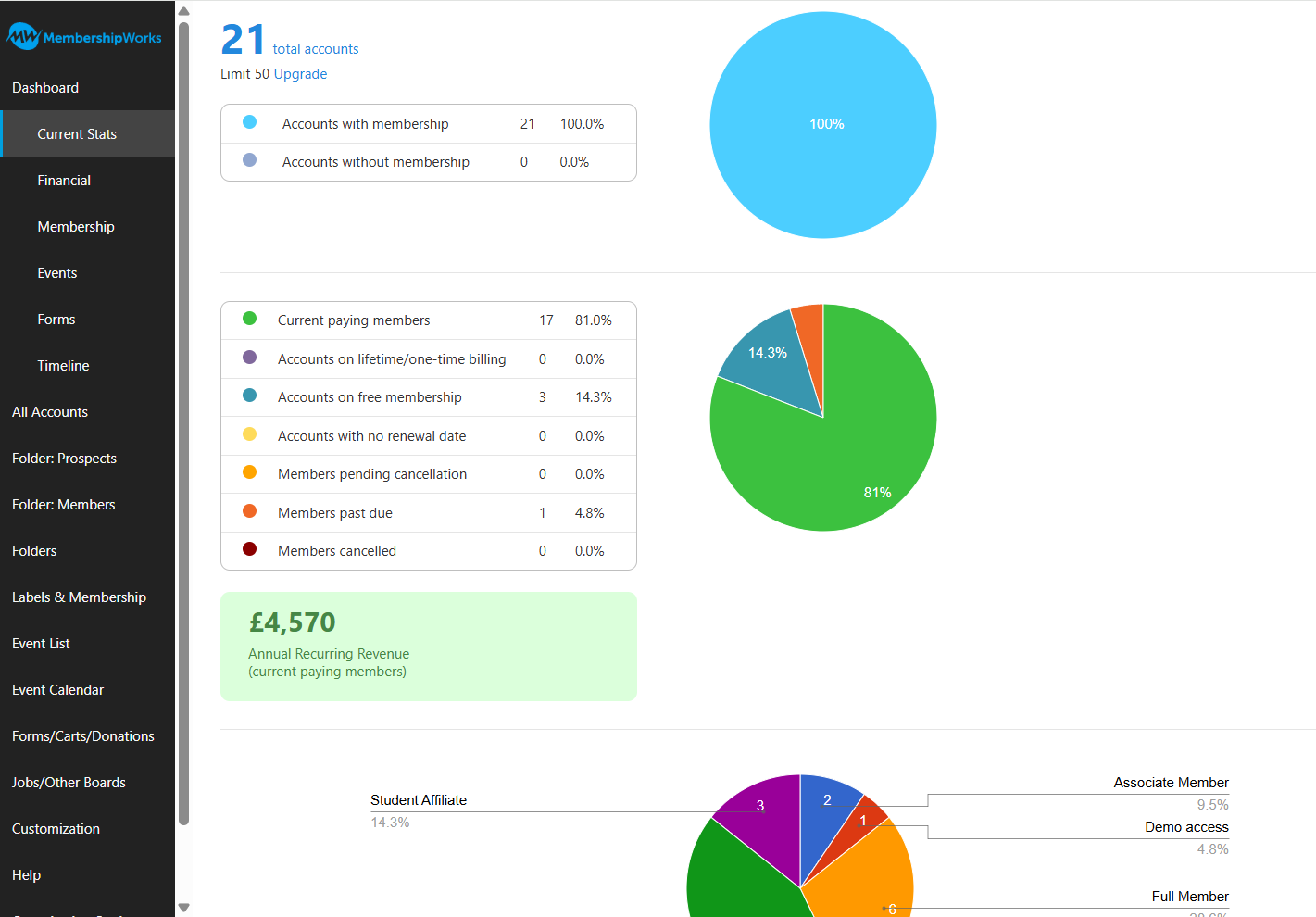
The dashboard
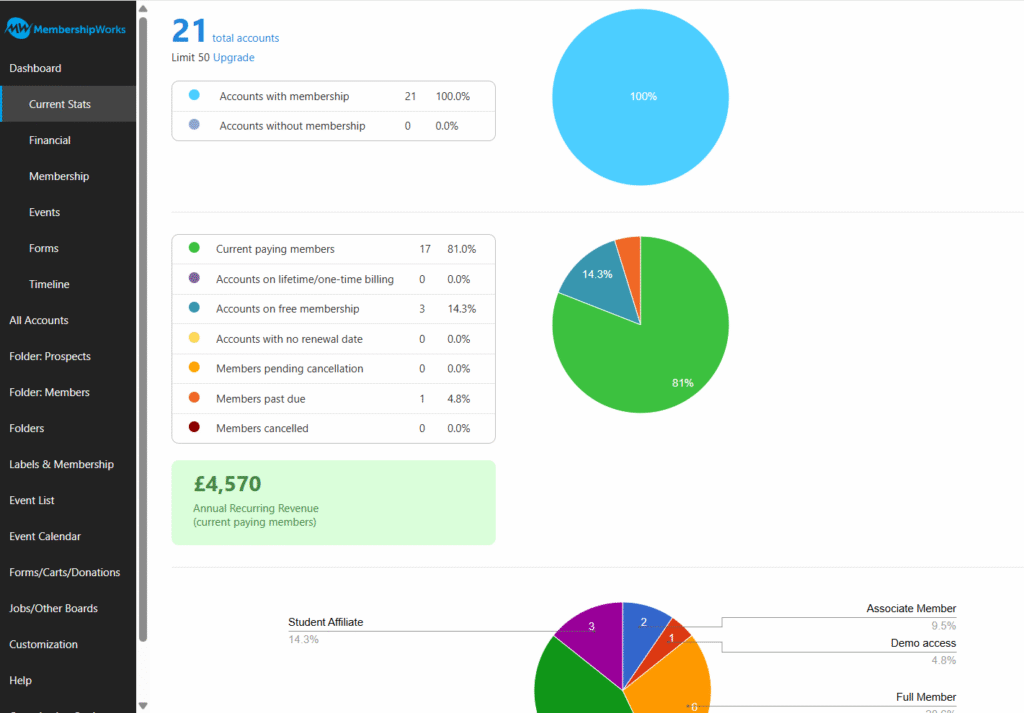
Opening the admin shows the state of the membership at a glance: total accounts, how many are paying, on free membership or past due, and annual recurring income. This is the screen the treasurer and board ask about.
Click the screenshot to see it full size (opens in a new tab). The member list
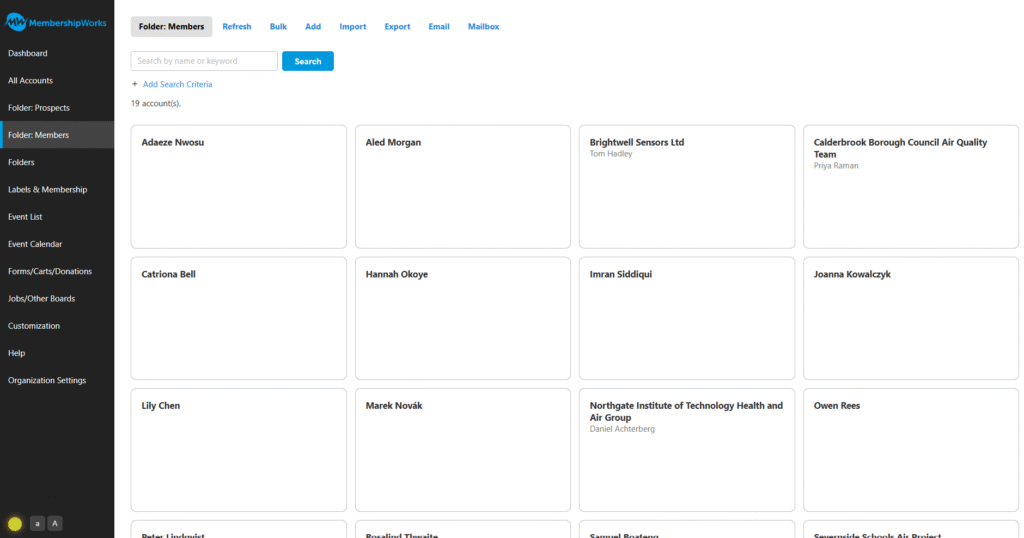
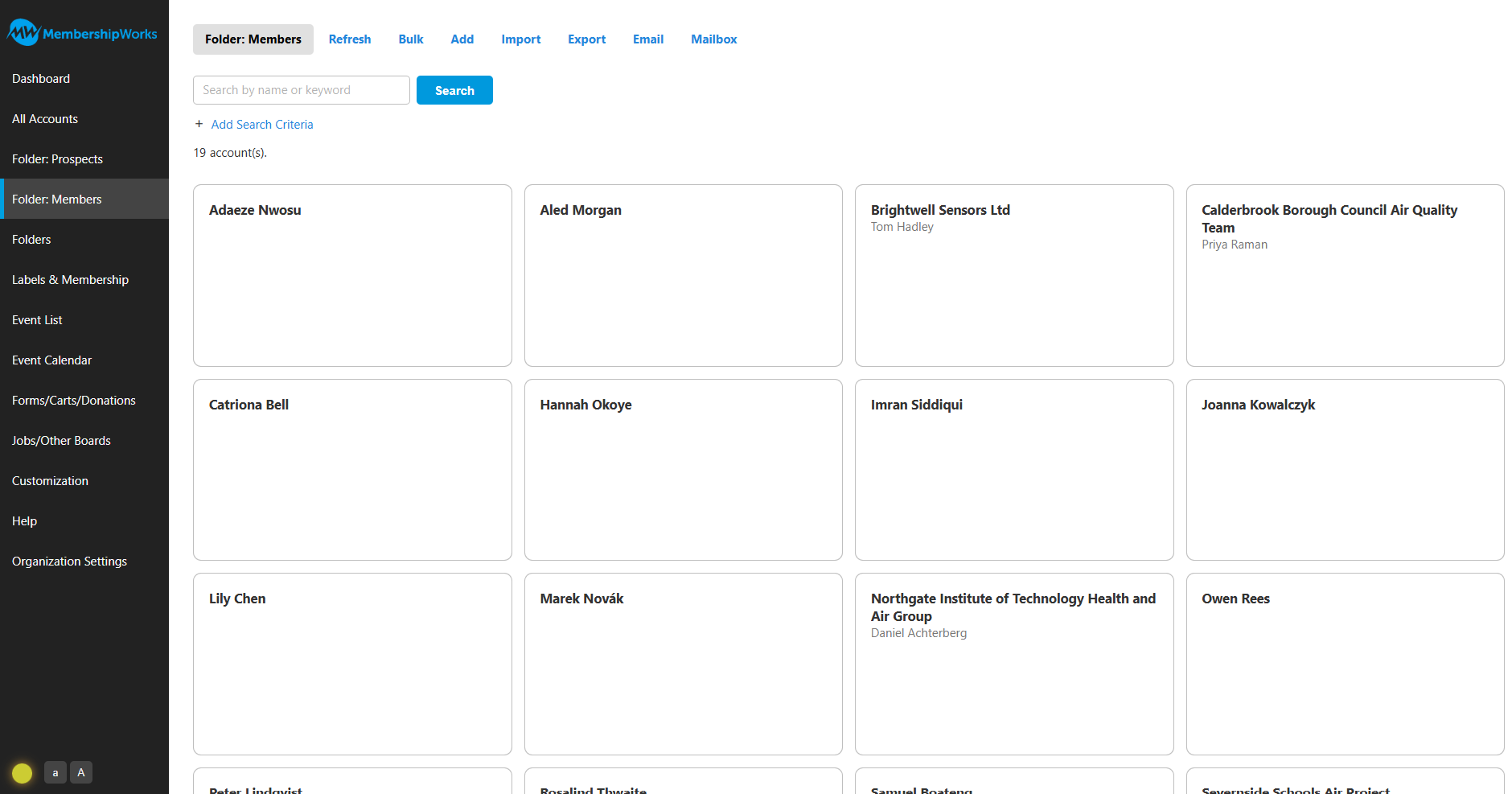
Every member in one searchable list. Search by name or keyword, or add criteria such as membership level, label or renewal date.
Click the screenshot to see it full size (opens in a new tab). A member’s record
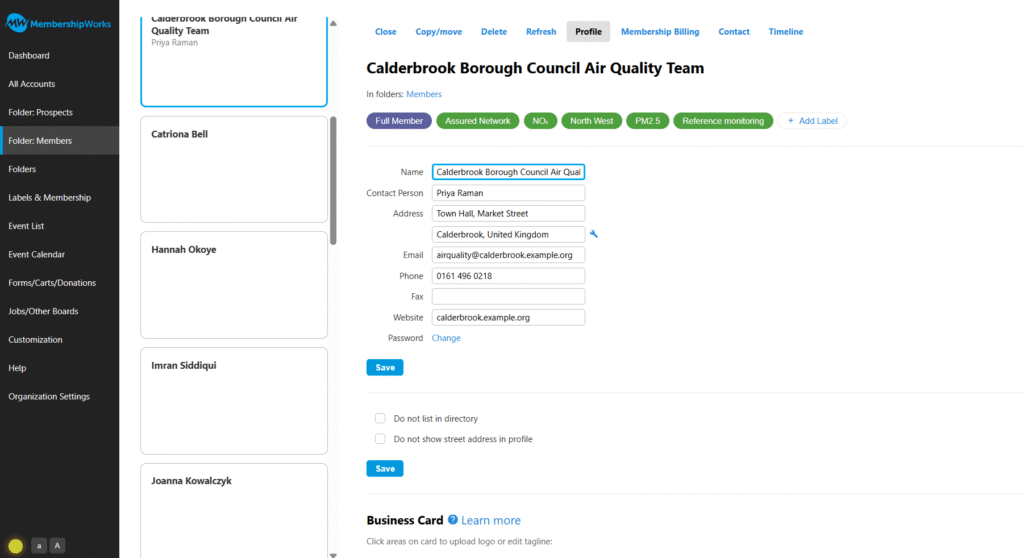
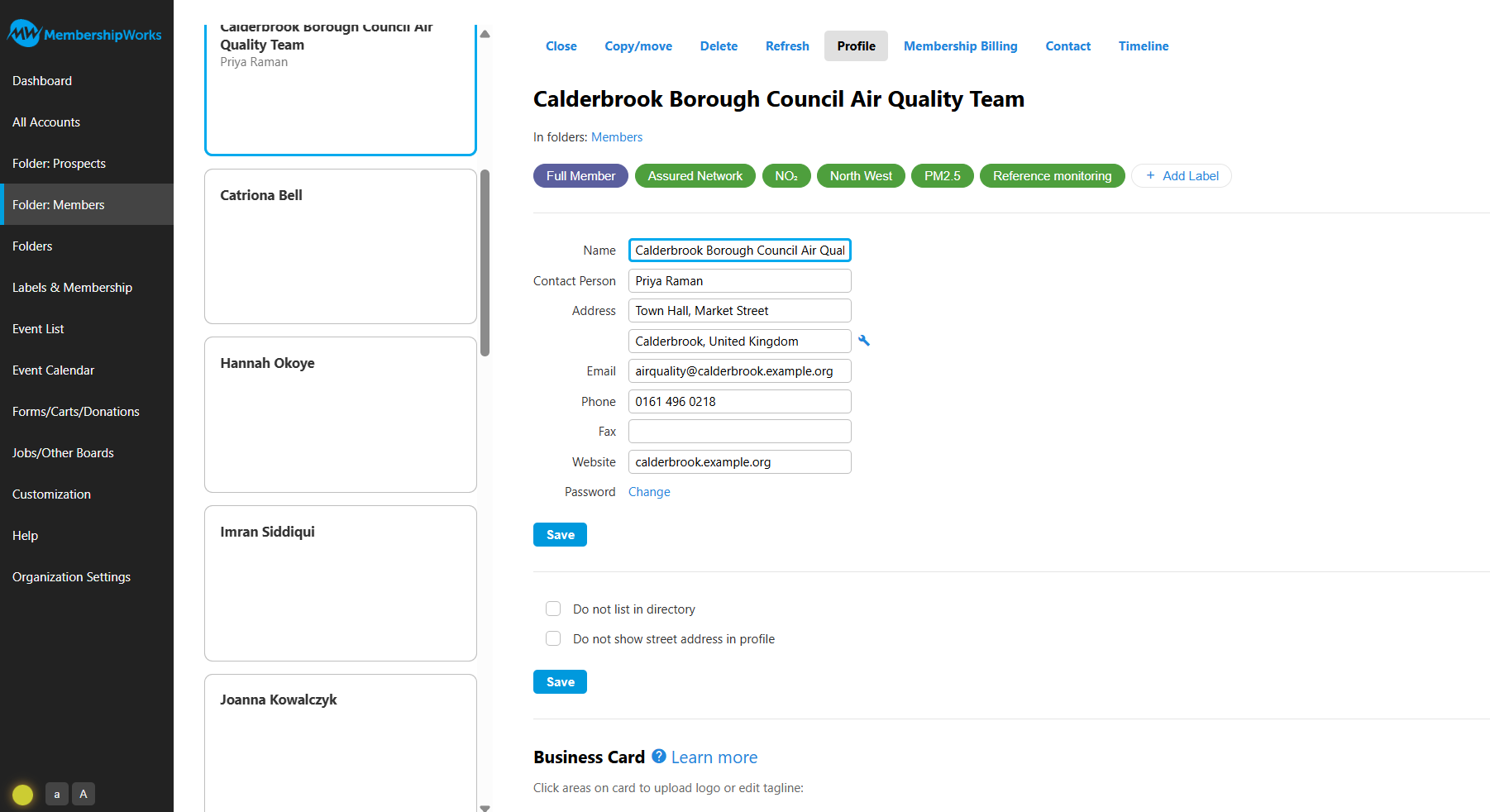
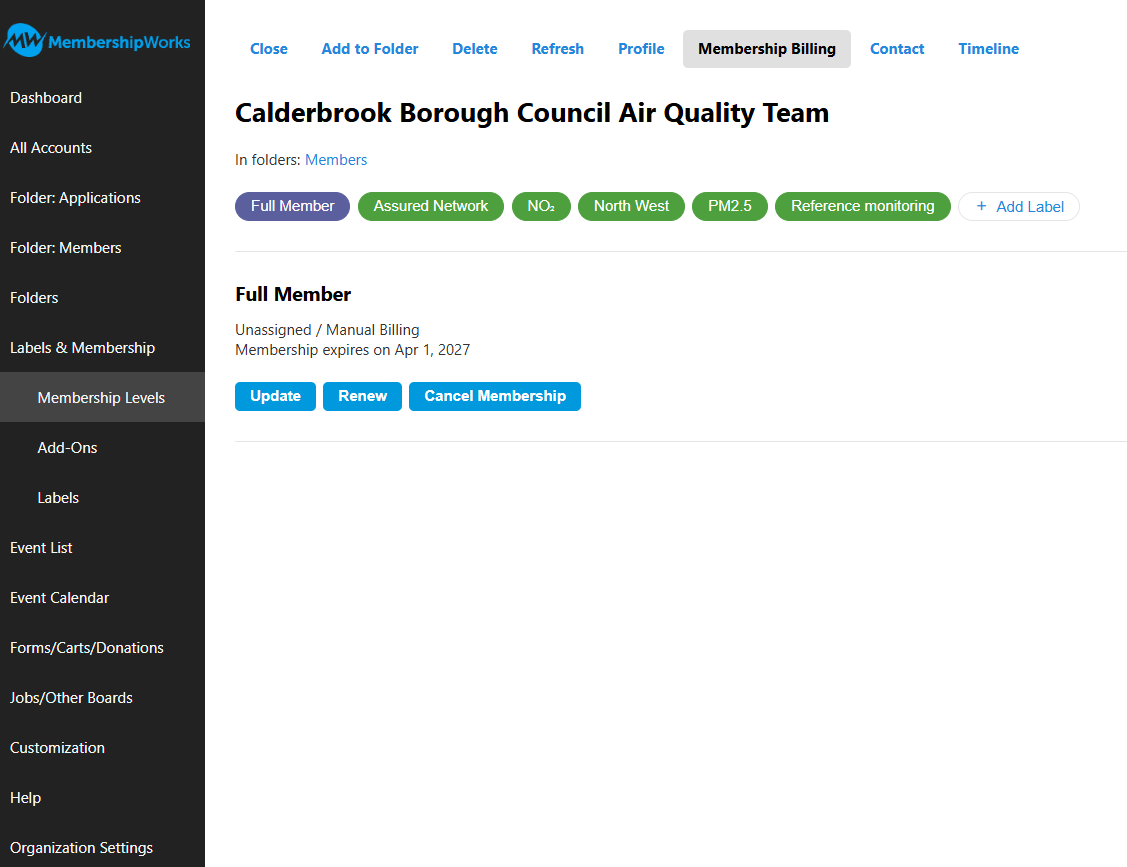
One screen per member: contact details, membership level and labels (here Full Member, Assured Network, region and pollutants). Staff can correct details, add a label or reset a password without a developer.
Click the screenshot to see it full size (opens in a new tab). Approving an application
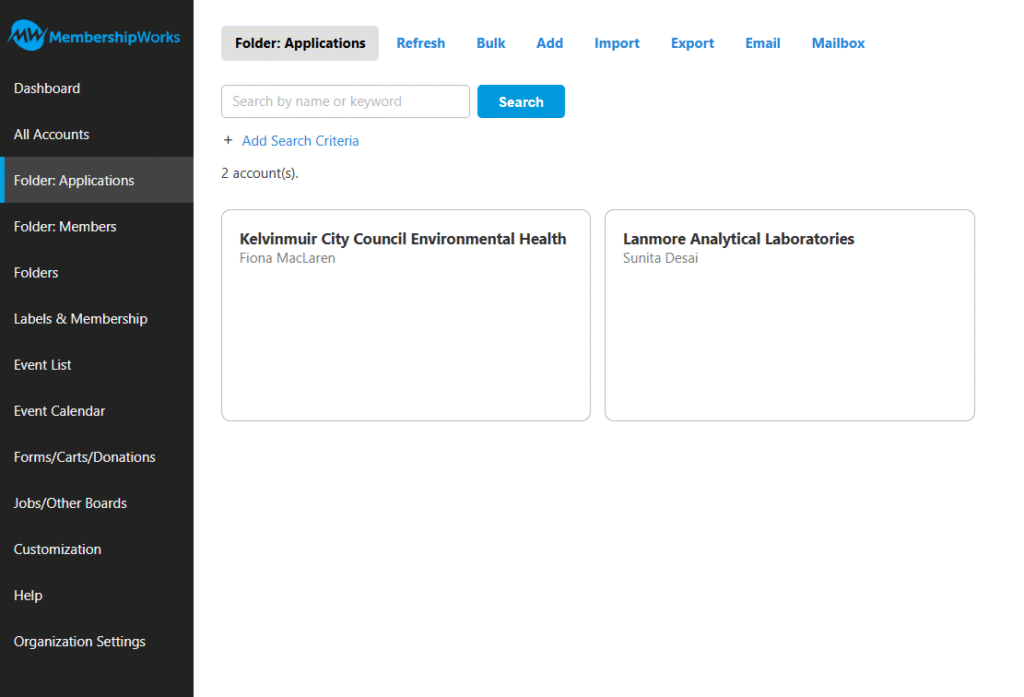
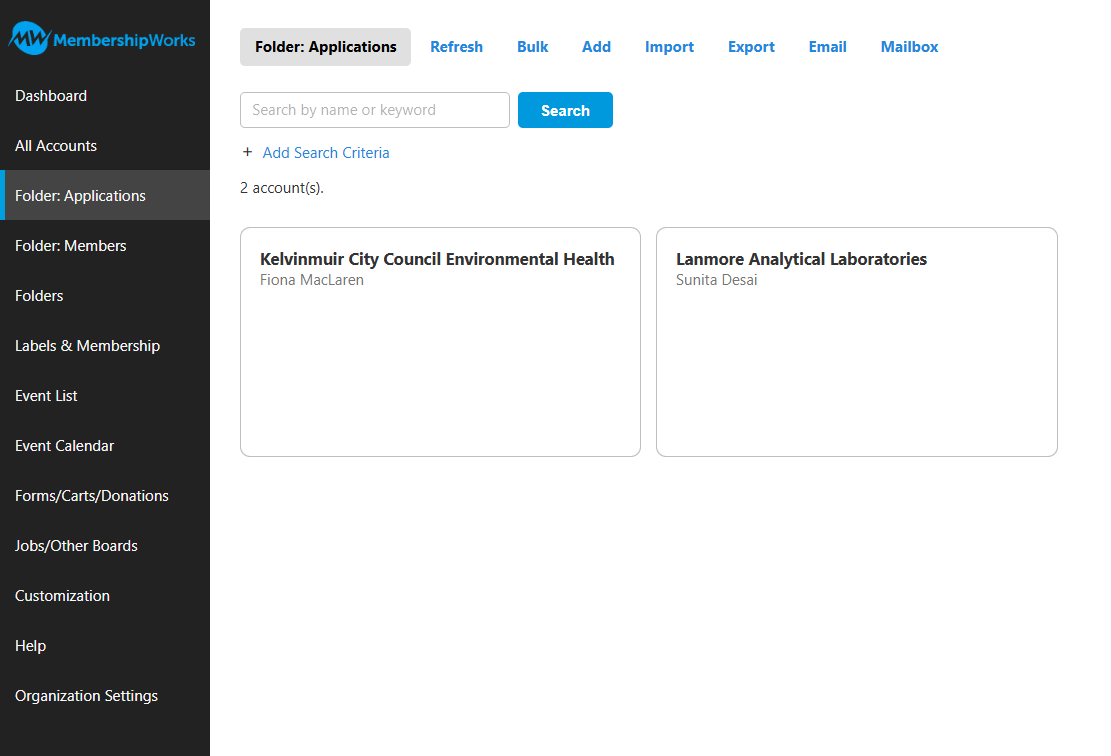
Full and Associate applications arrive in the Applications folder. The Membership Office checks each one, adds the Assured Network label if it qualifies, and moves it to Members; the approval email goes from the same screen.
Click the screenshot to see it full size (opens in a new tab). Renewal reminders
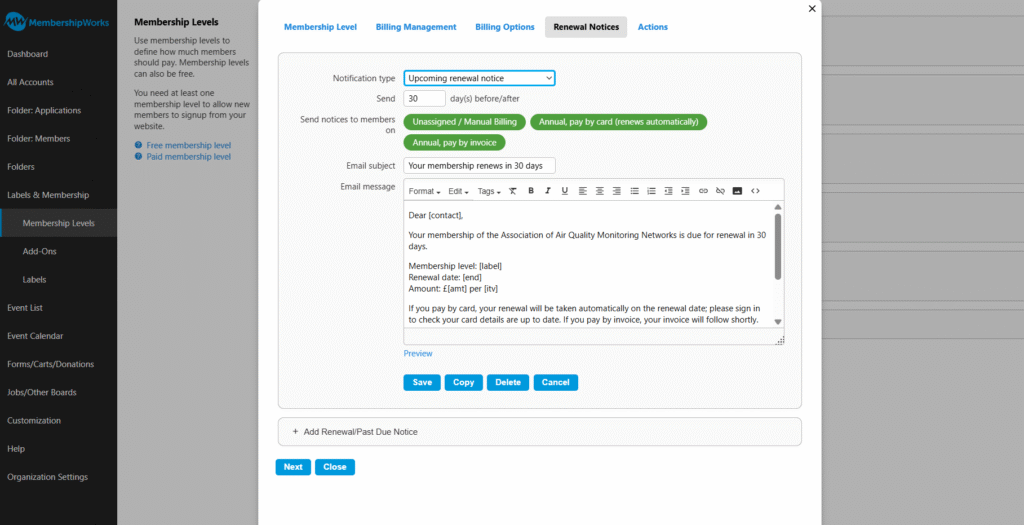
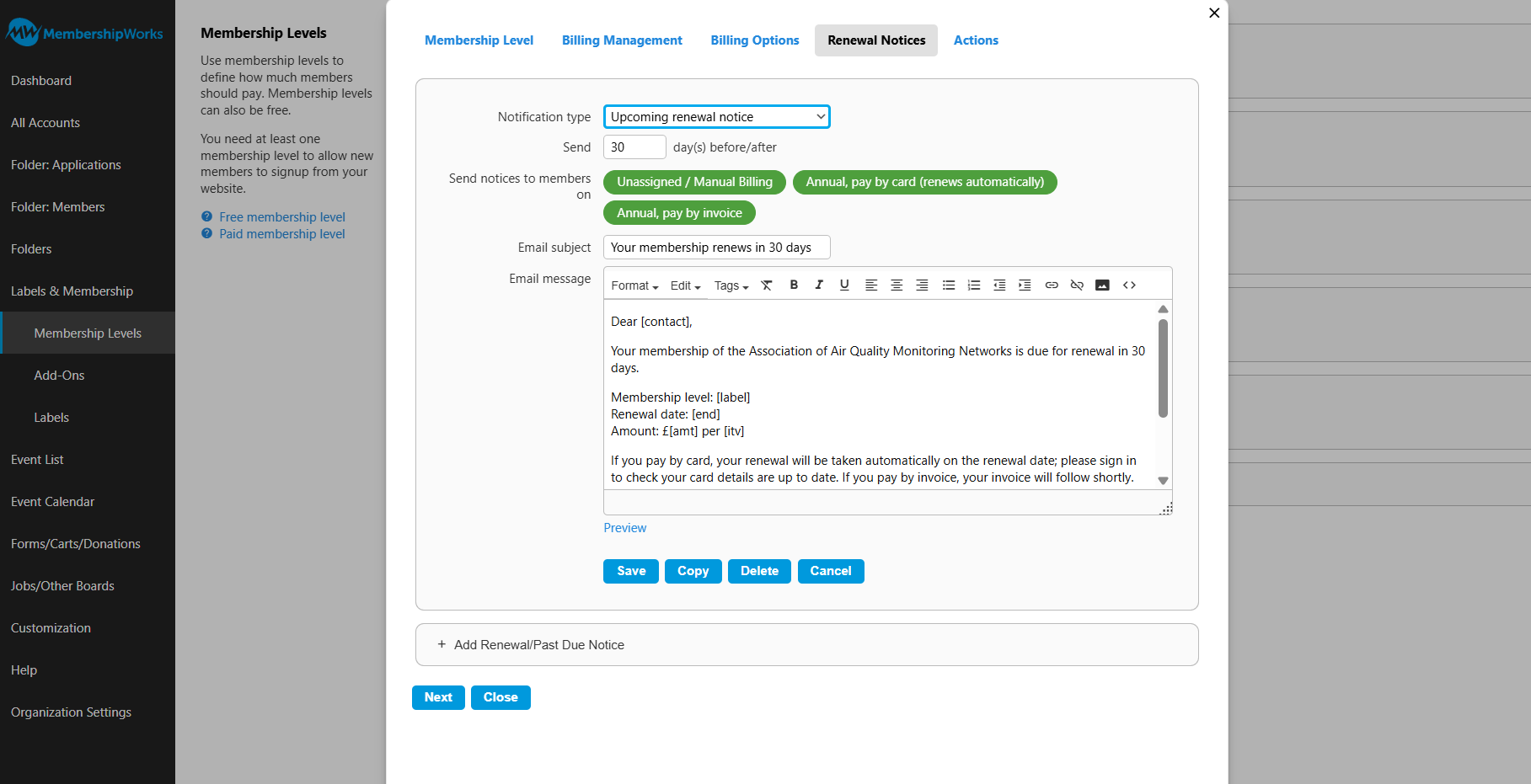
Each membership level sends its own renewal reminder, 30 days before the renewal date, worded by the Association. The placeholders fill in the member’s name, level, date and amount.
Click the screenshot to see it full size (opens in a new tab). Events
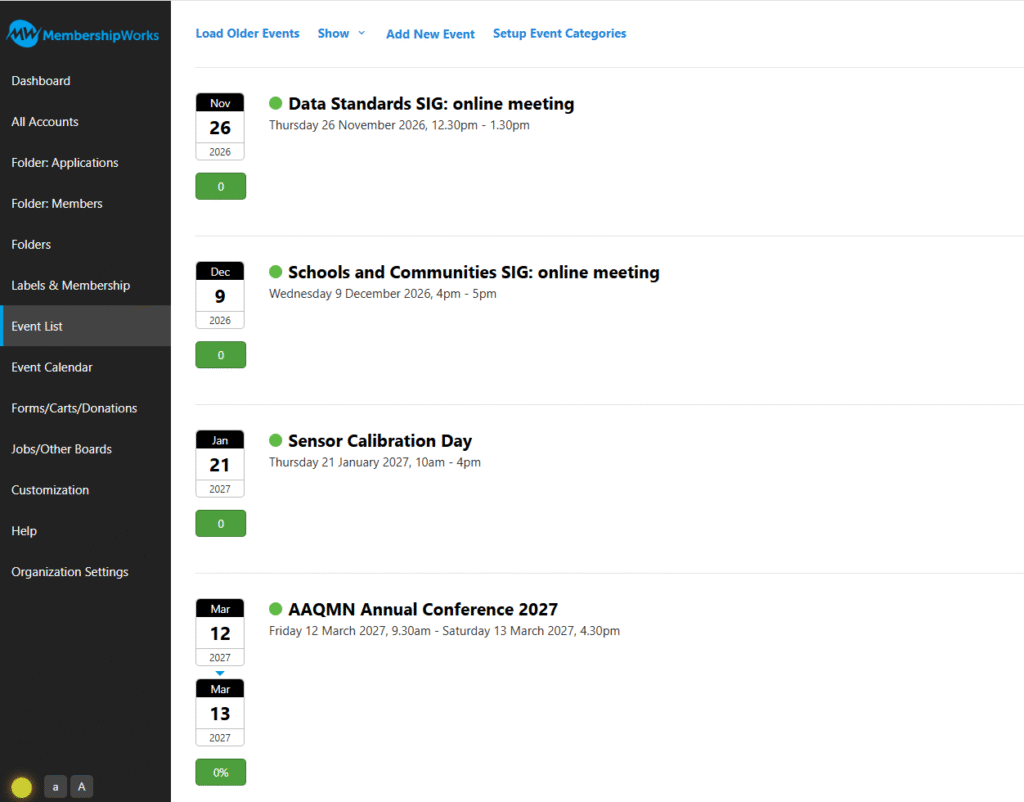
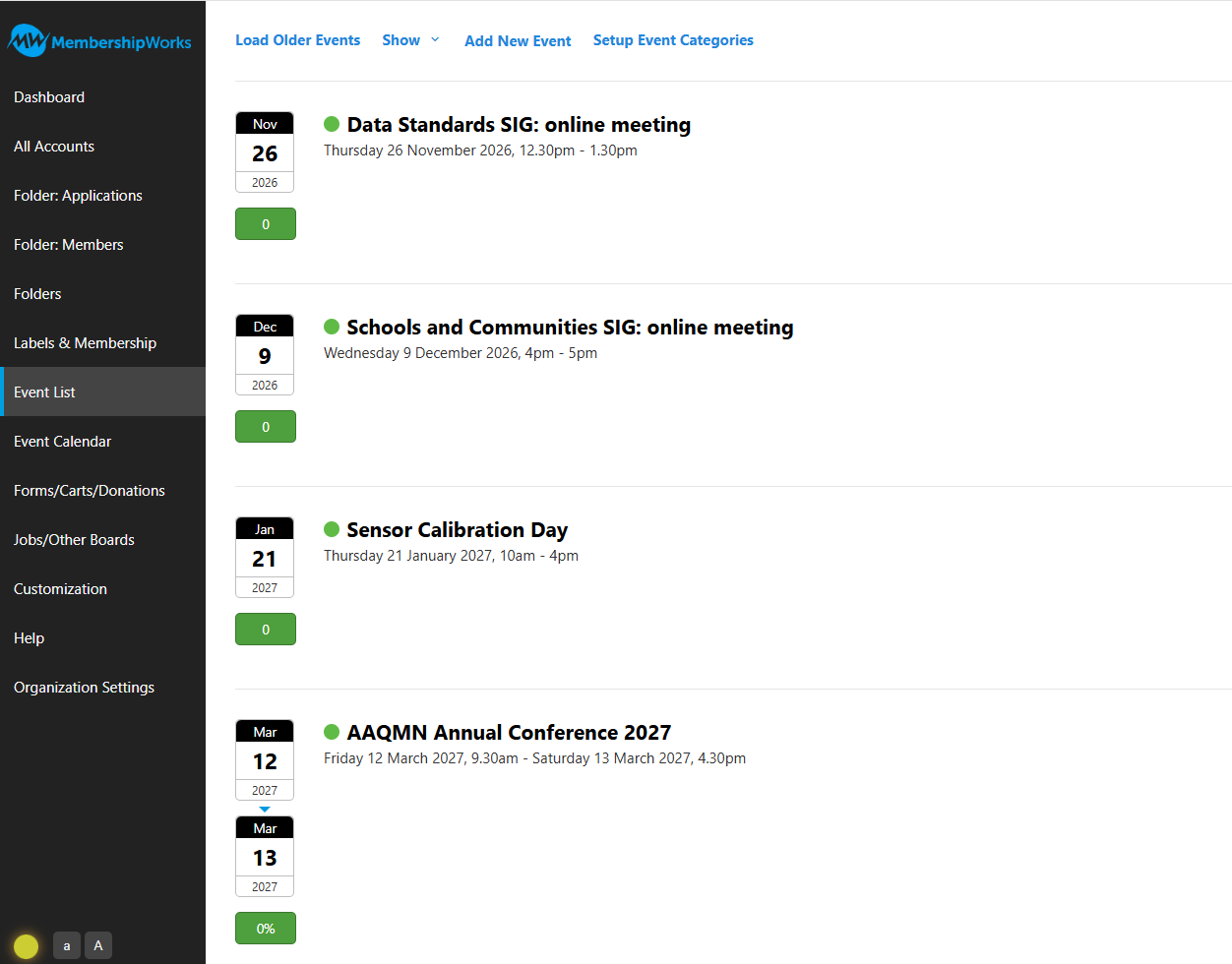
The year’s events in one list, with the number booked against each. Each event has its own tickets, member and non-member prices, and a registrations list that exports to a spreadsheet.
Click the screenshot to see it full size (opens in a new tab). Exporting a report
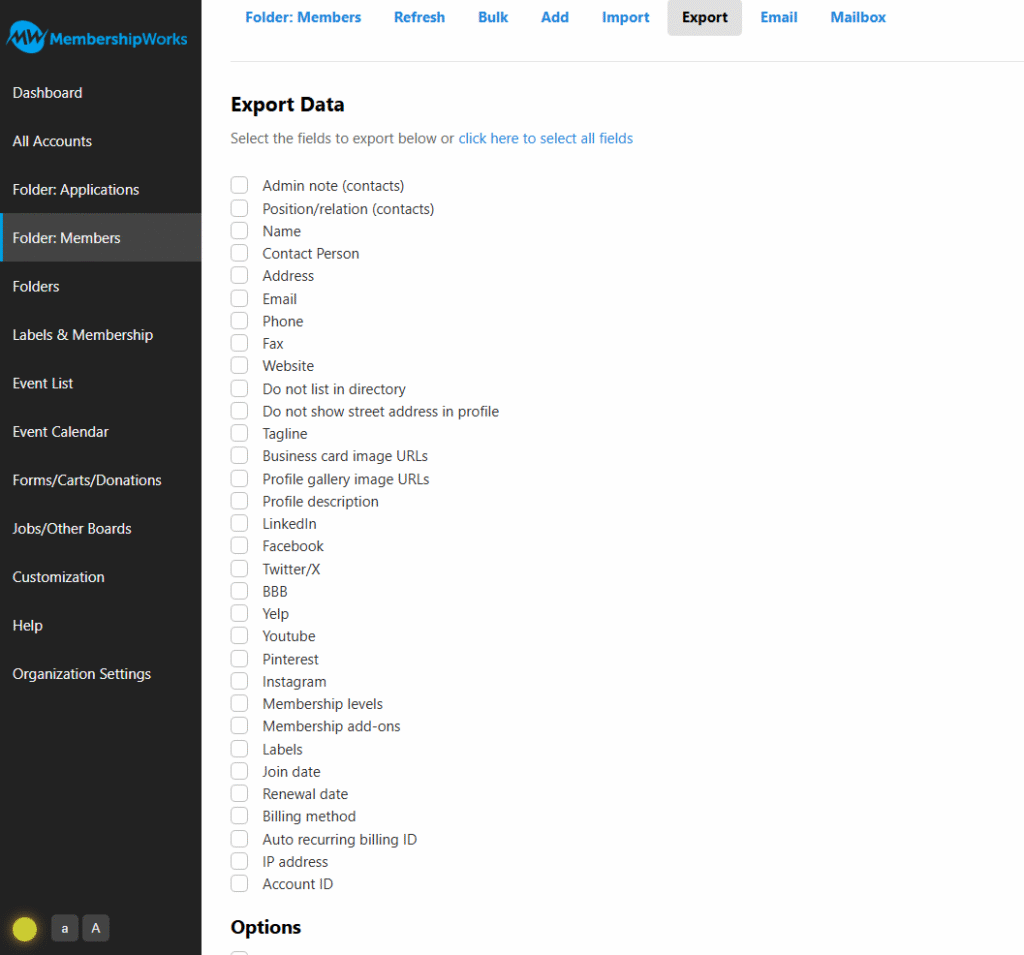
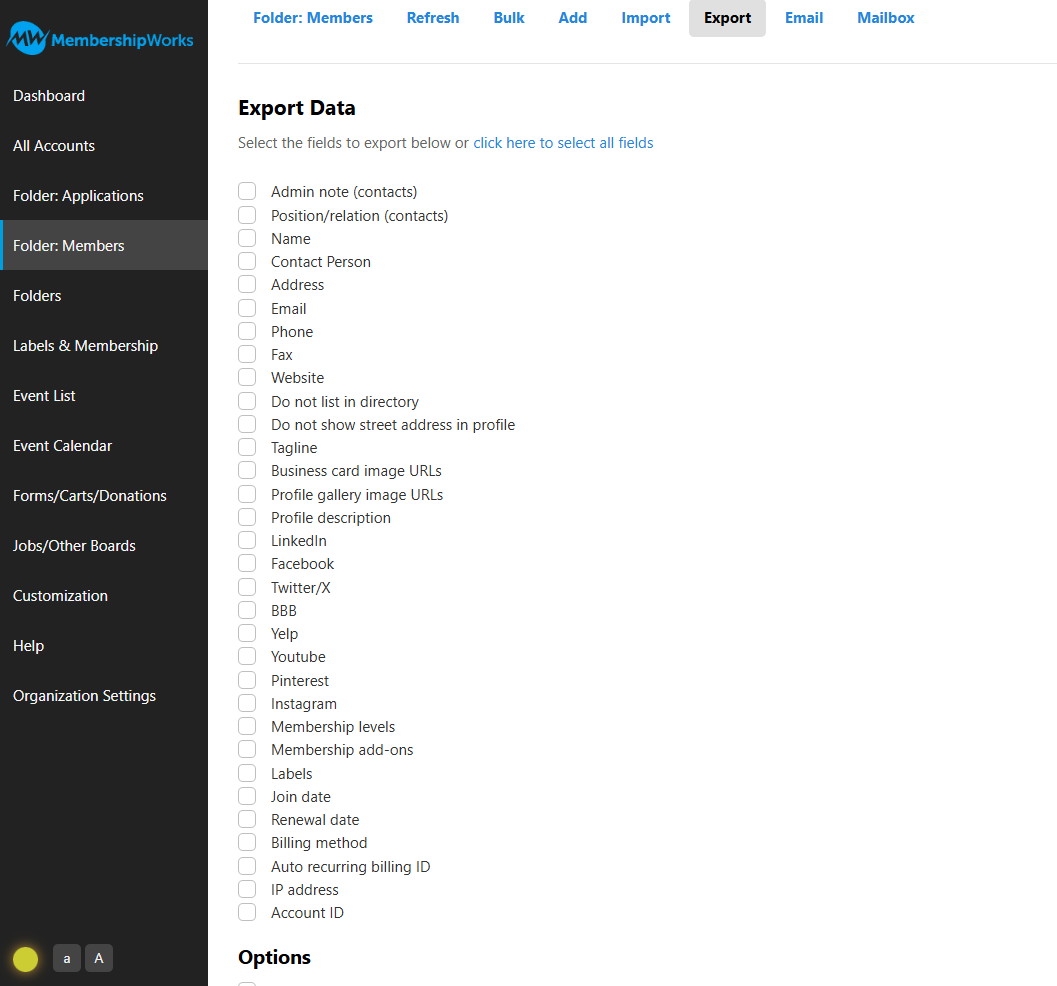
Any folder or search result exports to a spreadsheet: choose the fields (for example name, email, level, renewal date) and download. This is how the board report and mailing lists are produced.
Click the screenshot to see it full size (opens in a new tab). Labels
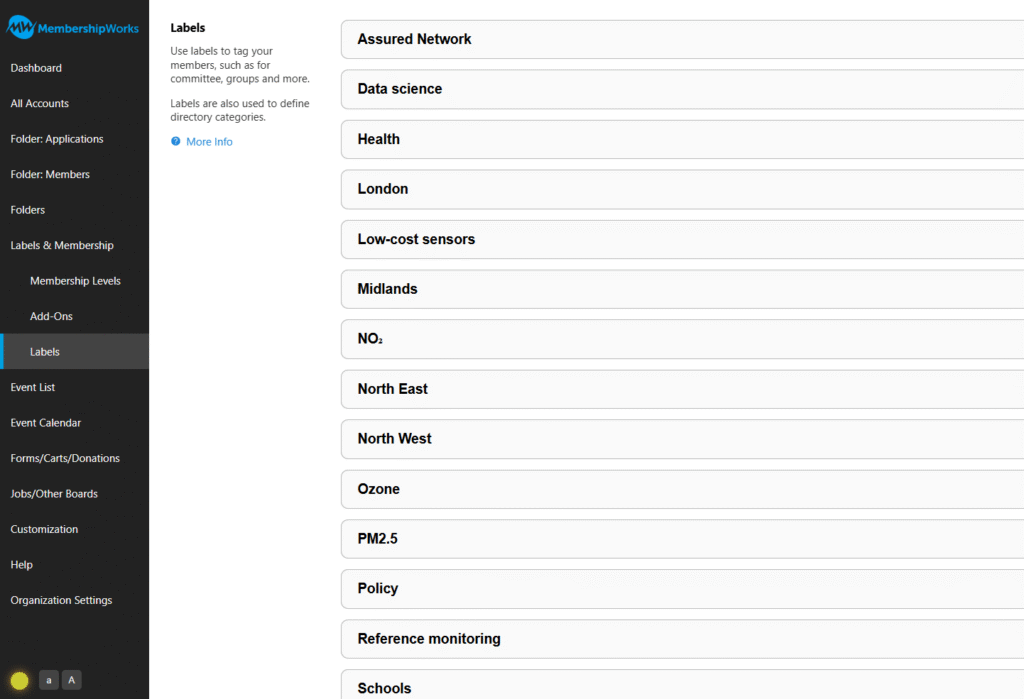
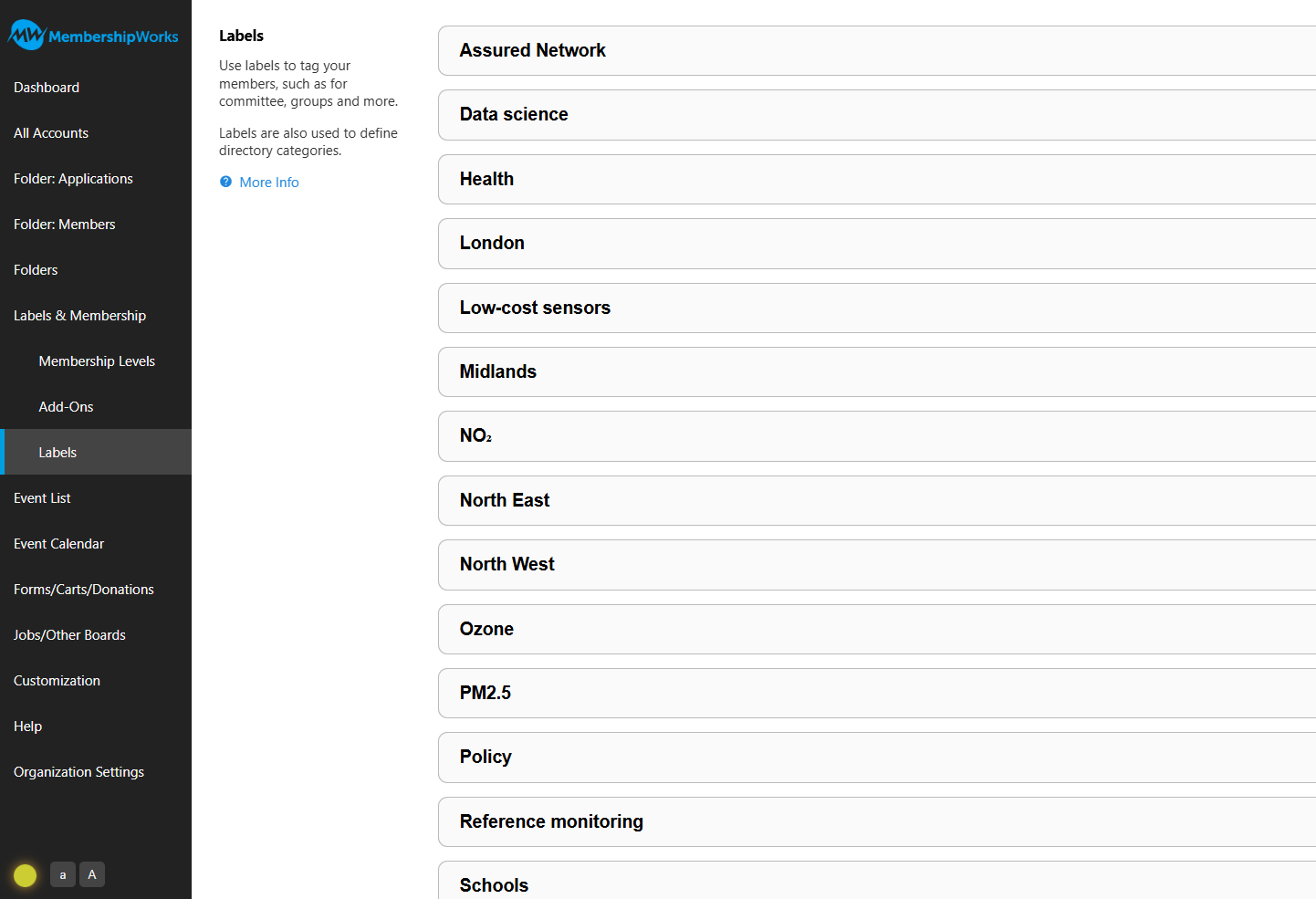
Labels tag members by special interest group, region and expertise. They drive the directory filters, who can see which members-only pages, and who can buy member tickets.
Click the screenshot to see it full size (opens in a new tab). Welcome emails
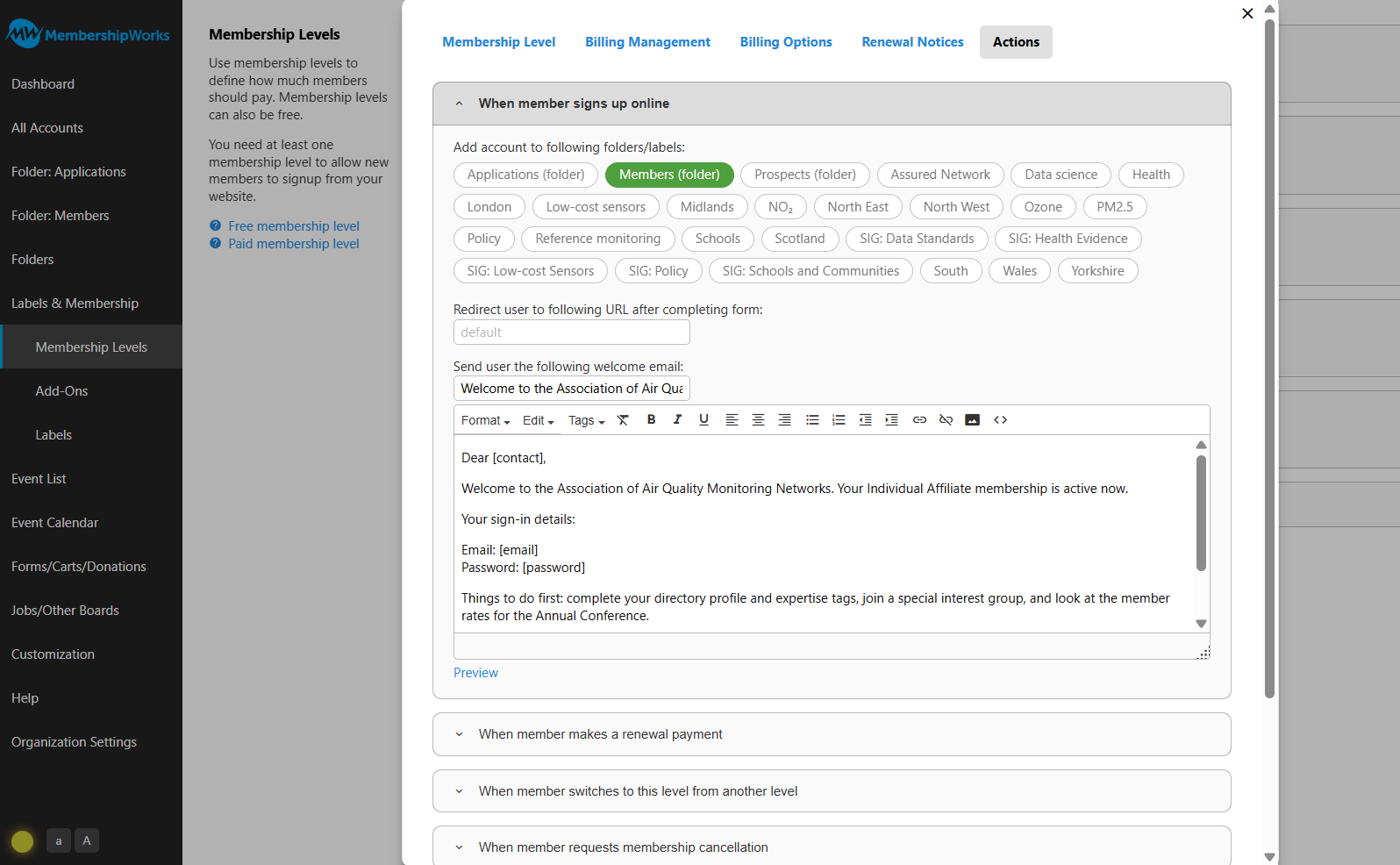
What happens when someone joins online is set per level: which folder and labels they get, where they go next, and the welcome email they receive.
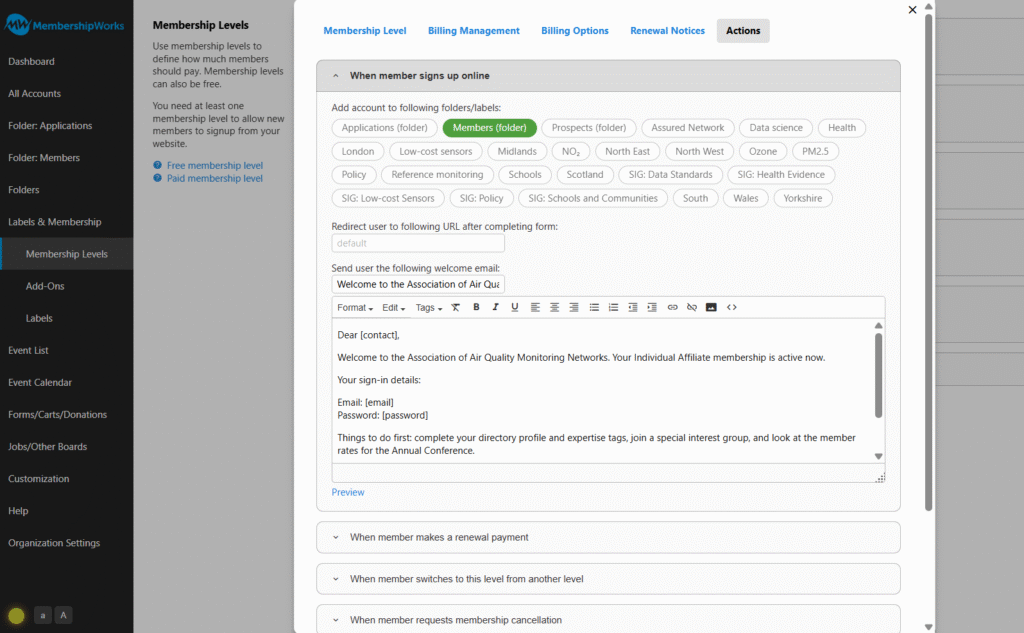
Click the screenshot to see it full size (opens in a new tab). Billing and renewal
Each member’s billing method and renewal date, with buttons to renew, change level or cancel. Payments by card renew automatically; invoices can be marked as paid here.
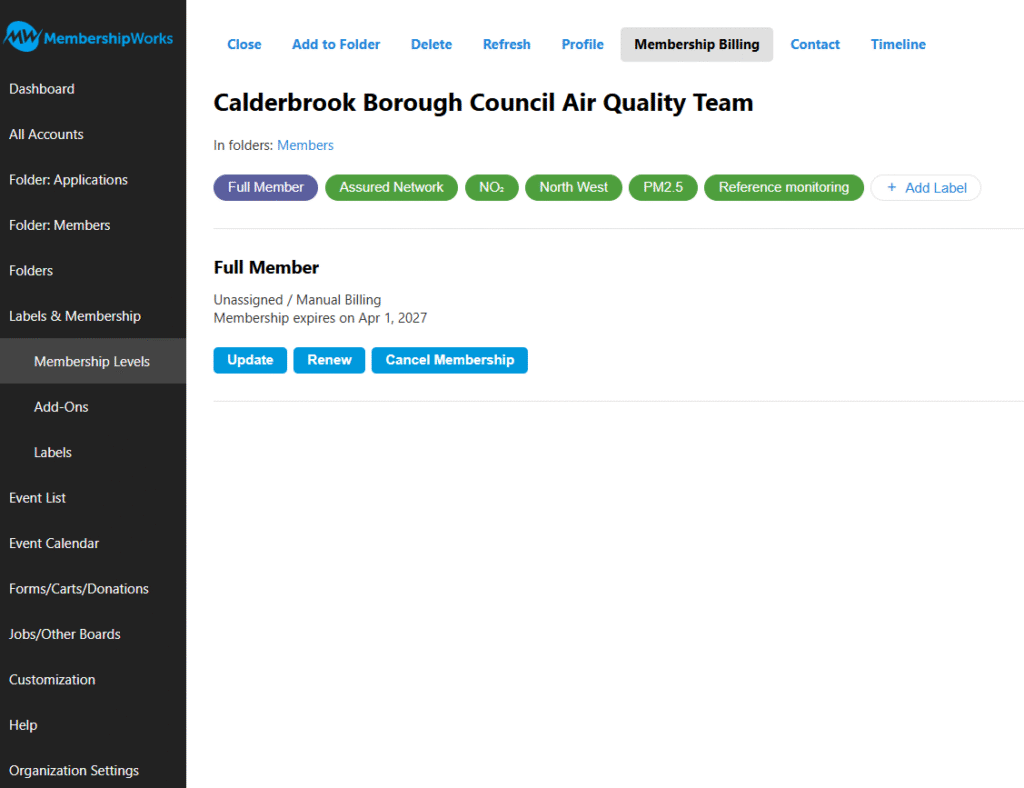
Click the screenshot to see it full size (opens in a new tab).
Routine jobs, and who does them
| Job | How it is done |
|---|---|
| New Individual or Student Affiliate | Automatic: they join online, get a welcome email and appear in the directory. |
| New Full or Associate application | Arrives in the Applications folder; the Membership Office checks it and moves it to Members, adding the Assured Network label if approved. |
| Renewals | Reminder emailed 30 days before; card payments renew automatically; invoices go to finance contacts. |
| Lapsed members | After 30 days unpaid, the directory listing and members-only pages switch off automatically. |
| Event bookings and reports | Bookings, attendee lists and income export to a spreadsheet in one click. |